My YouTube Channel
 # kali-all-commands
My YouTube Channel
# kali-all-commands
My YouTube Channel
 ---
## WSL 2 — Kali in Windows
[
---
## WSL 2 — Kali in Windows
[ ](https://youtu.be/JQDbcyRa5_0)
▶️ [Video Playlist](https://youtube.com/playlist?list=PL_RecMEcs_p-iAMEQascgKVMt4juhGip2&si=nzpb4GEv-QxkROI6)
### 13.1 Setup (Windows PowerShell as Admin)
```go
wsl --install
wsl --update
wsl --status
wsl --list --online
wsl --install -d kali-linux
// set userName : XXXX
// set Passward : 1XX
```
```yaml
┌──(whitedevil㉿akashdip2001)-[/]
└─$ ls /mnt
c d e wsl wslg
┌──(whitedevil㉿akashdip2001)-[/]
└─$ cd /mnt/c/Users
ls
akash 'All Users' Default 'Default User' desktop.ini Public
┌──(whitedevil㉿akashdip2001)-[/mnt/c/Users]
└─$ cd /mnt/c/Users/akash/Desktop
┌──(whitedevil㉿akashdip2001)-[/mnt/c/Users/akash/Desktop]
└─$
```
| [WSL more details](./wsl-in-windows.md) | [File Permissions (quick)](./permissions.md) | [File Permissions (deep dive)](https://github.com/akashdip2001/linux-all-commands/blob/main/00%20Linux%20File%20Permission.md) |
| --- | --- | --- |
](https://youtu.be/JQDbcyRa5_0)
▶️ [Video Playlist](https://youtube.com/playlist?list=PL_RecMEcs_p-iAMEQascgKVMt4juhGip2&si=nzpb4GEv-QxkROI6)
### 13.1 Setup (Windows PowerShell as Admin)
```go
wsl --install
wsl --update
wsl --status
wsl --list --online
wsl --install -d kali-linux
// set userName : XXXX
// set Passward : 1XX
```
```yaml
┌──(whitedevil㉿akashdip2001)-[/]
└─$ ls /mnt
c d e wsl wslg
┌──(whitedevil㉿akashdip2001)-[/]
└─$ cd /mnt/c/Users
ls
akash 'All Users' Default 'Default User' desktop.ini Public
┌──(whitedevil㉿akashdip2001)-[/mnt/c/Users]
└─$ cd /mnt/c/Users/akash/Desktop
┌──(whitedevil㉿akashdip2001)-[/mnt/c/Users/akash/Desktop]
└─$
```
| [WSL more details](./wsl-in-windows.md) | [File Permissions (quick)](./permissions.md) | [File Permissions (deep dive)](https://github.com/akashdip2001/linux-all-commands/blob/main/00%20Linux%20File%20Permission.md) |
| --- | --- | --- |
.png)
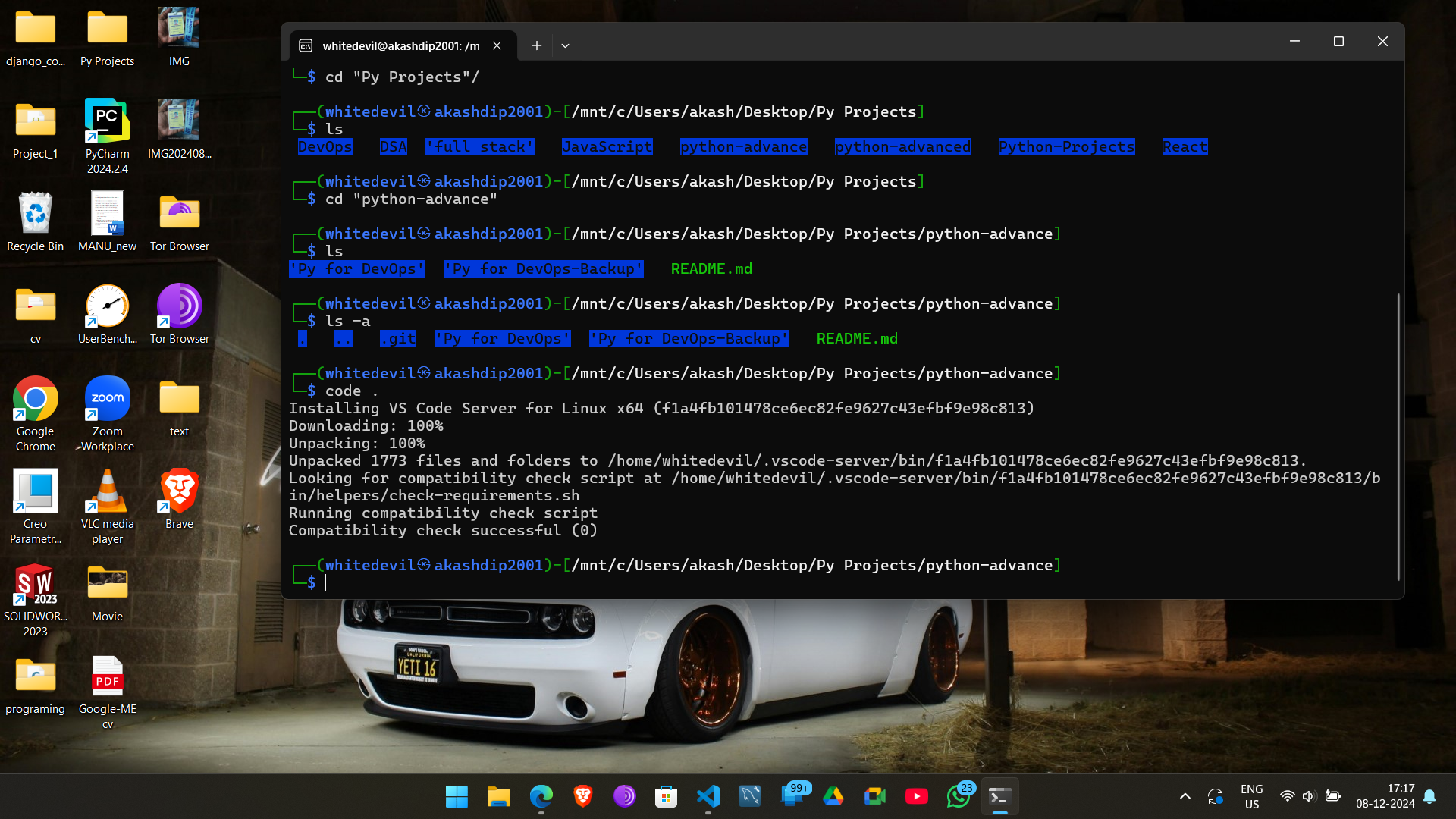 ### in Kali cell
```
cat /etc/os-release
// PRETTY_NAME="Kali GNU/Linux Rolling"
// NAME="Kali GNU/Linux"
// VERSION_ID="2024.3"
```
---
### 13.2 Reset WSL Password
Forgot your WSL user password? Reset it from Windows CMD using root.
```bash
# Step 1 — Open Windows CMD and set distro to login as root
ubuntu2204 config --default-user root
# (replace ubuntu2204 with your distro name e.g. kali-linux)
# Step 2 — Root WSL shell opens. Reset the password:
passwd
### in Kali cell
```
cat /etc/os-release
// PRETTY_NAME="Kali GNU/Linux Rolling"
// NAME="Kali GNU/Linux"
// VERSION_ID="2024.3"
```
---
### 13.2 Reset WSL Password
Forgot your WSL user password? Reset it from Windows CMD using root.
```bash
# Step 1 — Open Windows CMD and set distro to login as root
ubuntu2204 config --default-user root
# (replace ubuntu2204 with your distro name e.g. kali-linux)
# Step 2 — Root WSL shell opens. Reset the password:
passwd 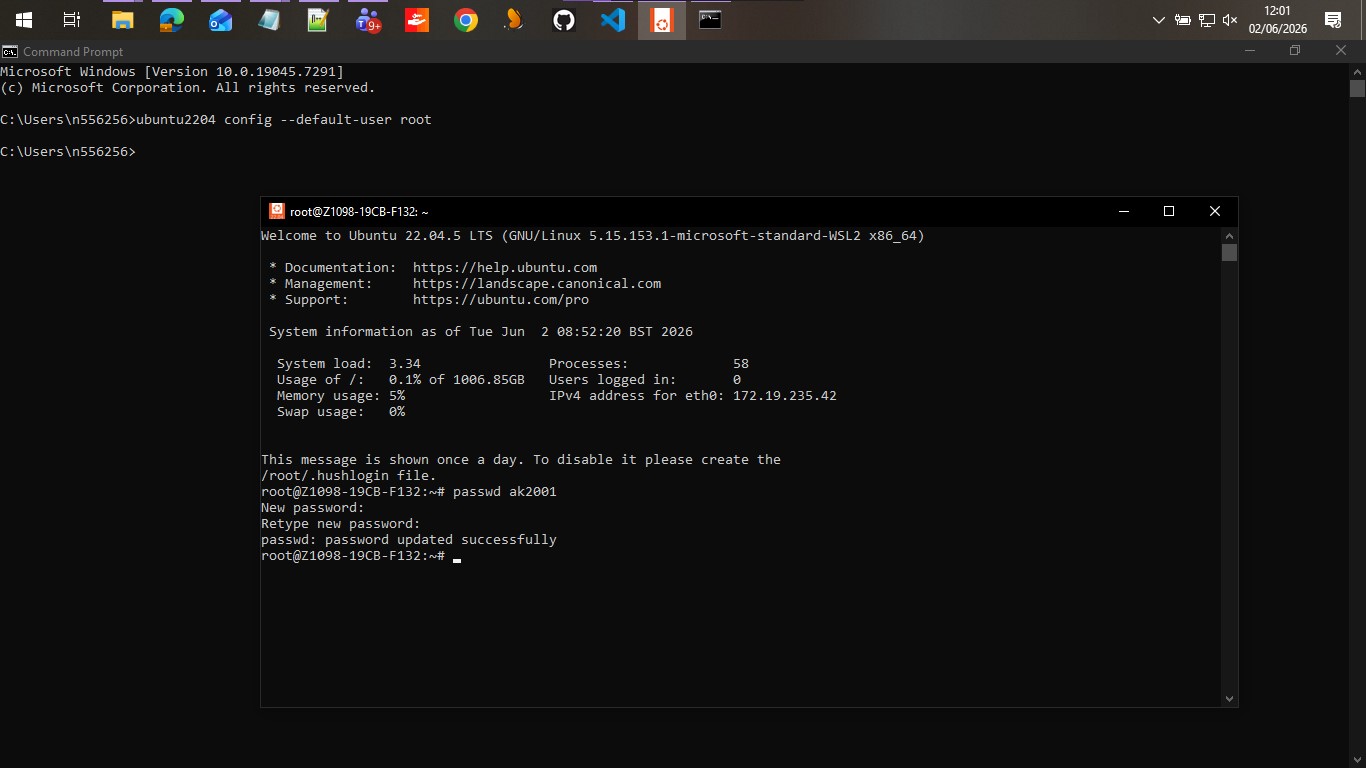 ---
### 13.3 Install Desktop Environment
## Install `mini` Desktop envirorment with `kex server` (❌ not Recommended ❌)
```
sudo apt update && sudo apt upgrade -y
sudo apt install kali-win-kex
kex --win -s
// set passward (6) Ex: 1XXAs0
// then enter Kali pass : 1XX
kex --esm --ip -s // for Wondows Remote Desktop
```
---
### 13.3 Install Desktop Environment
## Install `mini` Desktop envirorment with `kex server` (❌ not Recommended ❌)
```
sudo apt update && sudo apt upgrade -y
sudo apt install kali-win-kex
kex --win -s
// set passward (6) Ex: 1XXAs0
// then enter Kali pass : 1XX
kex --esm --ip -s // for Wondows Remote Desktop
```
.png)
 ### Shut Down
```
exit
wsl --shutdown
```
### Uninstall kex
```
// Uninstall Win-KeX and Xfce
sudo apt purge kali-win-kex
sudo apt purge xfce4 xfce4-goodies
sudo apt autoremove --purge
// Uninstall the Current Desktop Environment (Xfce and Win-KeX)
sudo apt purge kali-win-kex xfce4 xfce4-goodies
sudo apt purge lightdm light-locker
sudo apt autoremove --purge
sudo apt clean
```
## Install `Full` Desktop envirorment (✅ Recommended ✅)
```
// Install the GNOME Desktop Environment
sudo apt update
sudo apt install kali-desktop-gnome gdm3
// Set GNOME as the Default Environment
sudo update-alternatives --config x-session-manager
// Restart WSL or the System
wsl --shutdown
wsl
// To be continue ...
```
---
| « Ubuntu linux all commands
### Shut Down
```
exit
wsl --shutdown
```
### Uninstall kex
```
// Uninstall Win-KeX and Xfce
sudo apt purge kali-win-kex
sudo apt purge xfce4 xfce4-goodies
sudo apt autoremove --purge
// Uninstall the Current Desktop Environment (Xfce and Win-KeX)
sudo apt purge kali-win-kex xfce4 xfce4-goodies
sudo apt purge lightdm light-locker
sudo apt autoremove --purge
sudo apt clean
```
## Install `Full` Desktop envirorment (✅ Recommended ✅)
```
// Install the GNOME Desktop Environment
sudo apt update
sudo apt install kali-desktop-gnome gdm3
// Set GNOME as the Default Environment
sudo update-alternatives --config x-session-manager
// Restart WSL or the System
wsl --shutdown
wsl
// To be continue ...
```
---
| « Ubuntu linux all commands